Help
Everything you need to record your first match and read the report. It takes ten minutes.
See a full report first
Open a sample match to see everything you get at the final whistle.
Video tutorials on YouTube
Short videos for every part of Sixline, and all our news. Subscribe so you do not miss any.
Start in 5 steps
- 1
Create your team
Open Squads, press New squad and give it a name (for example U19). A club can have several squads.
- 2
Add your players
Add each player with shirt number and position. Mark your goalkeepers as Goalkeeper, the report then shows a card for each keeper. Coaches can also invite players with a link.
- 3
Create the match
Open Matches, press New match, pick the squad, write the opponent and the date. Choose Live for a match you watch now, or Scouting to study a team from a video.
- 4
Match setup
Before kick off Match setup asks how much to record (Quick 1 tap, Standard 2 taps, Full 3 taps), the seven on court (the keeper too) and the half length. For a change during play tap a bench player, then the player who goes off. This gives minutes, +/- and each keeper's numbers. For a video you do not need it: tap the shirt number you see.
- 5
Zone, player, result
Press Start recording. For a shot: tap where it came from on the court, then the player, then the result (Goal, Saved, Miss, Blocked, Post, Lost ball, Foul, 7m won). 7m, 2 min, Card, Timeout, Empty goal and Fast break are in the bottom bar. Made a mistake? Press Undo.
During the match
Weak internet in the hall
Keep recording. Every action is saved on your device first and sent when the connection is back. The top bar shows Offline and how many actions are waiting. Do not close the page while it says Offline.
Live for the coach
More, Live for the coach shows tips from the match so far: what works, what to watch, weak spots. Our timeout opens the Timeout card. The coach can also follow on a second phone or tablet from the match page.
Fans
Share the live score link from More, Share live score. Fans see the score, goals, cards and 2 minutes, and can follow your team for alerts.
After the match
The report
Open the match and press Report: team against team, the score timeline, attack by attack, shot maps, the keepers, player rating and more. Print it as PDF or export to Excel.
Season
Analytics adds up all your matches: players, zones, systems and the opponents you meet again.
Every option explained
A step by step guide to everything in Sixline. Open the area you need. Each part says what the button does and when to use it.
The guide as a PDF
5 pages, Arabic and English: download it and keep it on your phone.
Confirm your email
After you sign up we send a link to your email. Open it to activate the account. If you do not see it, look in Spam or Junk (and Promotions on Gmail), then press Send the email again.
Two short questions
A new account first asks what best describes you (coach, analyst, team manager, club or academy, parent or fan) and if you have a match coming up. Yes, this week opens Quick start. Not right now opens Record from a video. Just looking opens a full sample report. Skip takes you to the dashboard.
Your first report in 3 steps
The dashboard shows 3 steps: Record your first match, Record 10 events, Open the report. They tick in this order. While you have 1 to 9 events a banner says how many and has Continue recording. At the 10th event a message tells you the report is ready.
Quick start
Write your team and the opponent and press Start recording. No players needed: tap shirt numbers and add the names later. The events you recorded with a number are linked when you add that player.
Record from a video
No match today? Press Record from a video (YouTube or your device). Paste a YouTube link or choose a video file on this device, name the two teams and record while it plays. A file from your device is never uploaded. Every plan includes a video match.
Practice match
Not sure how? Step 2 has a small link to a practice match to warm up. It is a made up match that lives only in this tab, nothing is saved. A bar guides you through three events and then opens a real report.
Put Sixline on your phone
iPhone: open sixline.novendo.app in Safari, press Share, then Add to Home Screen. Android: open it in Chrome, menu, Install app. It opens like an app, works with a weak connection and can send you notifications.
Language, light or dark
The AR / EN button and the moon button are at the top of every page. Arabic switches the whole app to right to left.
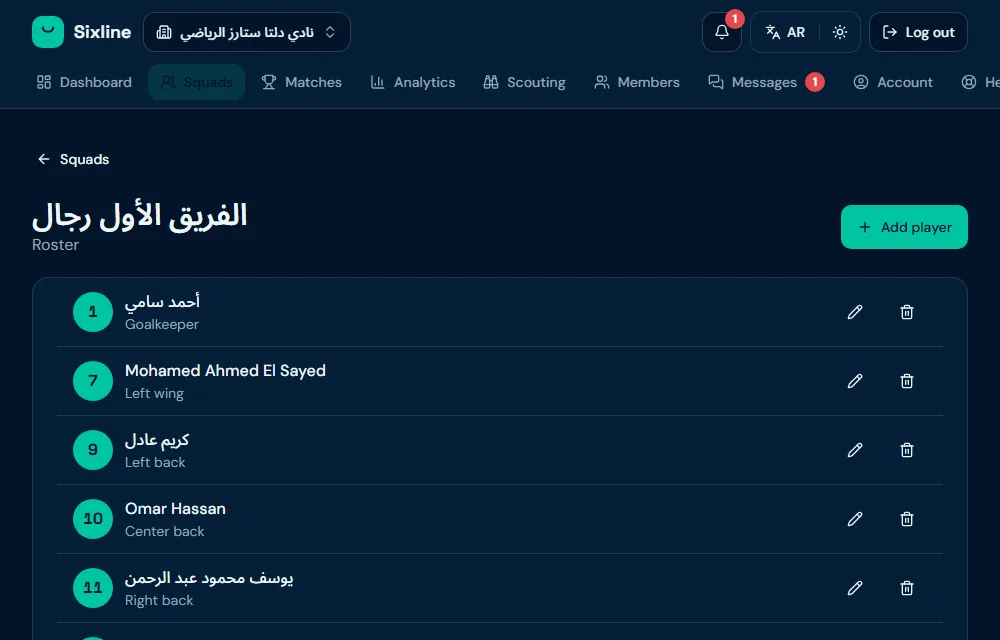
Squads
Open Squads, press New squad, give it a name (U19, First team). A club can have several squads. Your plan sets how many.
Add players
Open the squad and press Add player. Write the name, shirt number and position. Mark your keepers as Goalkeeper: the report then gives each keeper a card. You can add many players at once.
Invite players
Club owners and coaches can invite players with a link (Members). Players see their own card and their team, not the analysis.
Members and roles
Owner, coach, analyst, player, viewer. Each person can be limited to some squads. One account can be open on 2 devices.
New match
Open Matches, press New match. Choose the squad, write the opponent, date and competition. Pick Live or Scouting from video. The dialog shows how many matches your plan has left.
Match length
Two halves of 30 minutes is the default. You can change the number of periods and their length when you create the match.
Match page
Each match has a page with Record, Report, the coach view and the video. Delete a match from its page (it stays in your yearly count).
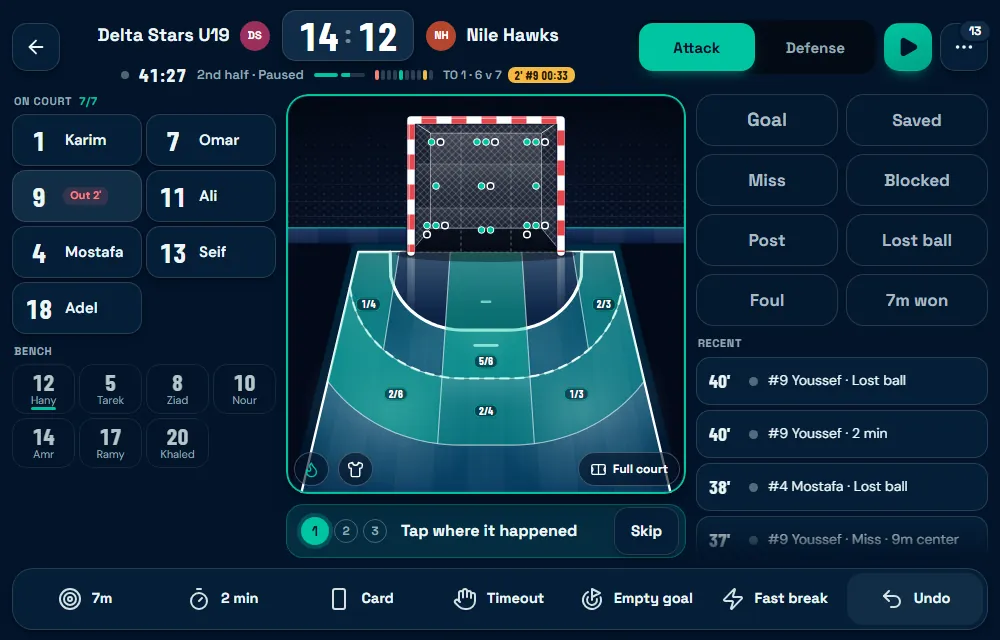
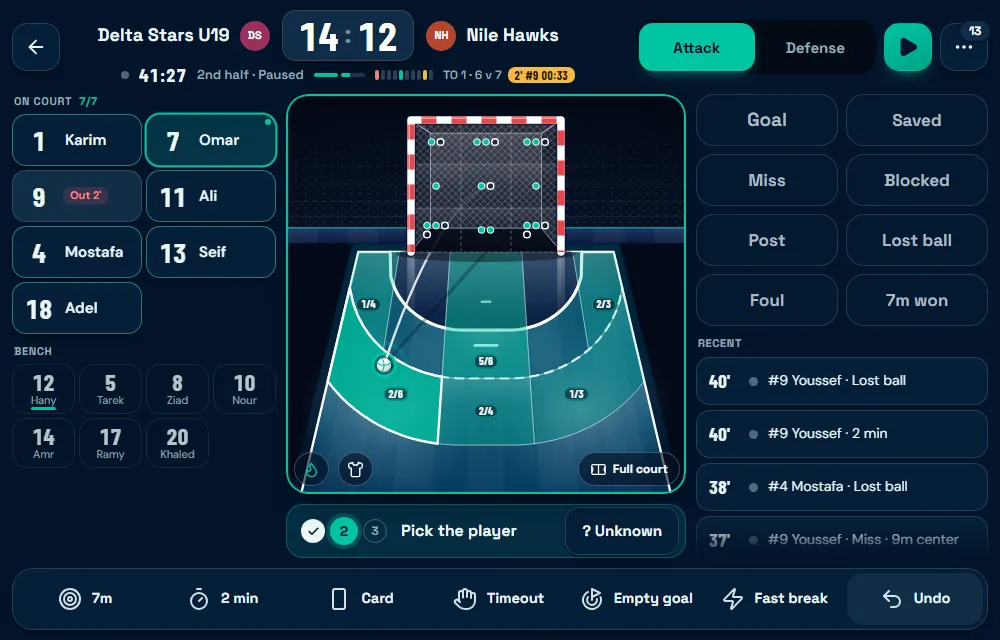
Match setup and the clock
Before kick off Match setup asks How much do you want to record? (Quick, Standard or Full), the Players on court and the Half length. Start recording also starts the clock. Pause and Resume are the big button in the scoreboard. If you record while the clock is stopped a banner warns you and has Start the clock. At the end of a half press End half in More, at the end End match.
The seven on court and the bench
Pick the first 7 in Match setup (the keeper too), or Skip, I will pick later. The bench is always on screen: tap a bench player, then the player who goes off (or drag on a laptop). Without a lineup the squad shows in two rows and Set your 7 players asks for it. This gives minutes, +/- and each keeper's numbers. Not needed for a video: there you tap shirt numbers.
The court
The half court is drawn in 3D with the goal in front of you. Tap where it happened: the zone lights up and a ball marks the spot. The court also shows this match: goals and shots per zone (like 3/5), every shot, or nothing. Change it with the On the court button in its corner.
Half court or Full court
The switch in the court corner. Half court has the Attack and Defense tabs and flips by itself when a possession ends (you can turn this off in More, Recording settings). Full court shows both halves: the half you tap decides attack or defense, so there are no tabs. Swap sides with the arrows button, or it swaps by itself at half time.
Pick the player
After the zone, tap the player in the On court list, or ? Unknown. In Full court a picker opens right beside the spot. Players who often shoot from that zone have a dot (and come first in the picker). In Standard the court spot is optional and the player stays picked: Same player? Tap the result. For the opponent tap their number, or + to add a new shirt number.
Pick the result
Eight tiles: Goal, Saved, Miss, Blocked, Post, Lost ball, Foul and 7m won. On Defense they show the opponent's side (Conceded, We saved, They missed, We stole). Quick level has no court and no player needed: one tap saves.
Players and shooting % on the court
The shirt button beside On the court puts your court players on the half court as jerseys at their positions (LW, LB, CB, RB, RW, PV), each with goals/shots of this match from 2 shots on. Tap a jersey to pick the shooter. Works in attack, with a lineup, not on Quick. The bench shows the same percent.
Goal face (Full level)
On tablets and laptops a big goal sits on the goal line. Turn on Record where the ball goes in the goal in Match setup (in More: Goal corner after a goal or save). Then after zone and player, tap the goal: a square is on target, then tap Goal or Saved right there. The frame is Post, beside the goal is Miss. On phones the goal comes close over the court. The 8 tiles still work.
Undo and Add goal corner
After each event a message shows for 8 seconds with Undo (it says what, for example Undo: #10 Goal). After a Goal or Saved it also has Add goal corner. If you ignore it nothing is lost.
The bottom bar
7m, 2 min, Card, Timeout, Empty goal, Fast break and Undo. Phones show the half, the timeouts and the 2 minute timers in the court corners.
7m
Press 7m, pick the team, the thrower (optional) and the result (Goal, Saved, Miss, Post). Both the 7m won and the throw are saved. The 7m won tile in the results records only the foul.
2 min, Card, Timeout
2 min asks Us or Them, then the player. Card asks Yellow or Red, then the team and the player. Timeout asks which team. A player on 2 minutes cannot be picked until the time ends, and the scoreboard shows 6 v 7.
Fast break and Empty goal
Press it before the shot. A banner over the court says whose it is (Our fast break or Their fast break) with a one tap Ours / Theirs switch. It is saved with whatever ends it (a shot, a lost ball, a foul, a 7m won) and then clears. The report counts fast break goals and shooting by phase.
Fixing mistakes
Undo in the bottom bar removes the last event. For an older one open More, Events, tap the event and change it or delete it. The last 10 events are a thin strip in the scoreboard.
Weak internet
Keep recording. Everything is saved on your phone first and sent when the connection returns. The top bar shows Offline and how many actions wait. Do not close the page meanwhile.
Forgot to end the match
If the clock runs on after the end, the app asks when you come back: close the match at its planned end, or keep playing. You also get a notification 15 minutes after the end.
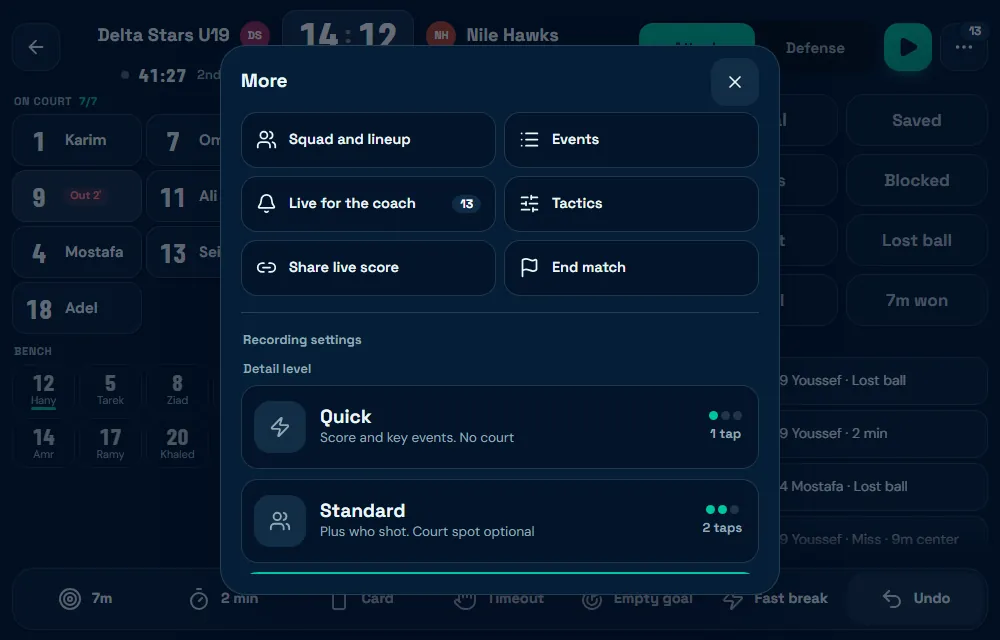
Squad and lineup
Opens Match setup again: change the detail level, the seven on court and the half length. During play use the bench on the main screen.
Timeout
Is in the bottom bar now. Pick the team. Our timeout opens the Timeout card with the points for the coach to talk about.
Recording settings
Detail level (Quick, Standard, Full), Goal corner after a goal or save (Full only), Switch Attack and Defense by itself, and for a video Play the video after each action. Use the old live screen brings back the old screen. They are saved on this device only. On a keyboard: G S M B P L F T, shirt number + Enter, U undo, Esc clear.
Live for the coach
Tips built from the match so far: what works, what to watch, weak spots. The number beside it says how many there are.
Tactics
Choose your attack and defense systems and the opponent's (6:0, 5:1, 3:2:1...). Each action is saved with the system in use, so the report can compare systems.
Events
The list of every action. Touch one to change the player or the result, or delete it.
Share live score
A link for parents and fans. They see the score, goals, cards and 2 minutes live, and can follow your team for alerts.
End half and End match
End half closes the first half; start the second half when play is back. End match asks once more and saves the final score.
Add the video
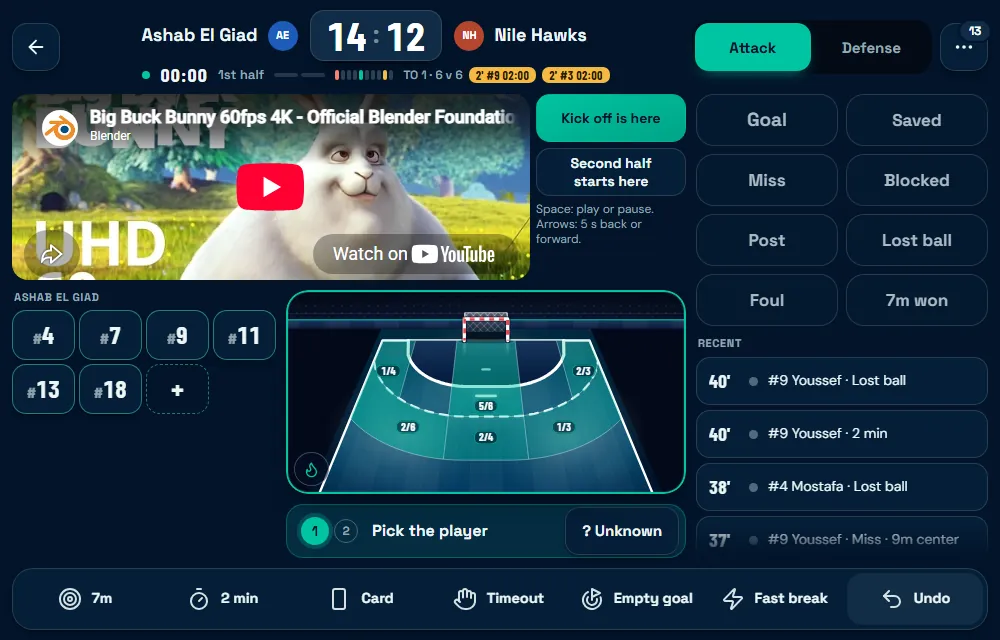
The fastest way: Record from a video (on the dashboard or in Quick start). Paste a YouTube link, or press From this device and Choose the video file, then name the two teams and press Start recording. You can also create a match with Scouting from video. A file from your device plays on this device only and is never uploaded: choose it again each time.
Kick off is here
Pause the video at kick off and press Kick off is here. At the second half press Second half starts here. Every event then gets its minute from the video.
No lineup needed
You do not have to know the starters. When something happens, press + and type the shirt number you see, or ? if you cannot read it. Our numbers and Their numbers stay in the list, so the next time it is one tap.
Record while it plays
Tap the court: the video pauses, you pick the player and the result, and it plays on (Play the video after each action, in More). Bigger video and Back to the court change the size; Hide the video is in More. Space plays or pauses, the arrows jump 5 seconds.
Video clips
From the report open Video clips to jump to any recorded action in the video.
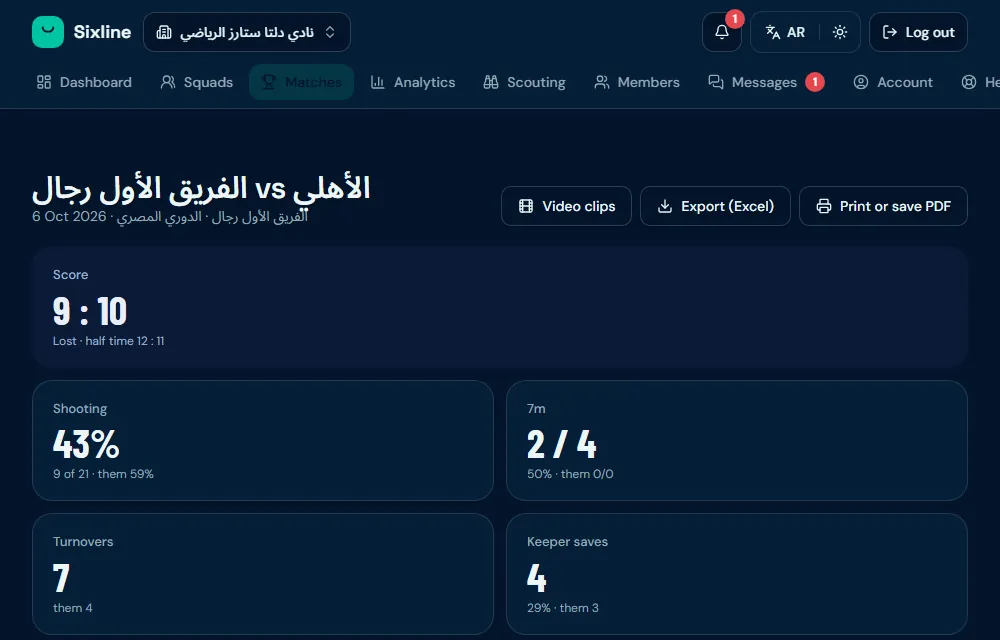
Score and five numbers
Score, shooting percentage, 7m, turnovers and keeper saves, with the opponent next to each.
Team against team
Shots, goals, saves, 7m, fast break goals, lost balls, steals and 2 minutes for both teams, and the efficiency of each attack.
Score timeline and attack by attack
How the score moved minute by minute, and every attack with how it ended.
Shot maps and goal grid
Where each team shot from, and where in the goal the shots went (needs the optional goal corner).
Players and keepers
A table per player (goals, shots, 7m, lost balls, steals, minutes, +/-), the player rating, and a card for each keeper.
Where the ball is lost and won
Lost balls and steals by zone, for both teams. Open More detail at the bottom for these and the other tables.
Half time report
Press Print or save PDF and choose Half time report to get only the first half.
PDF and Excel
Print or save PDF makes a white A4 file. In the installed app it makes the PDF itself and opens your share sheet (Files, WhatsApp, Mail). Excel exports both player tables and every event.
Match story
On the plans that include it, a short written summary of the match: what worked and what to train.
Scouting an opponent
Open Scouting and choose a team. It combines your video matches and your live matches against them: how they attack, how they defend, their keeper, their key players.
Analytics
Adds up all your matches: players, zones, systems and the teams you meet again. Filter by squad and print it.
Player card
Each player has a card with his numbers over the season. A link can be shared with the player or the parents.
Free and paid plans
Free: 1 squad, 5 live matches a year and 1 video match. Paid plans add more matches, squads and staff, PDF reports, video and the match story. See Pricing for the details.
Paying in Egypt
Choose a plan, pay with InstaPay (or the other ways shown), and upload the receipt. We activate your plan as soon as the money arrives. Outside Egypt you pay by card.
Your account
Profile, phone, language, notification switches and the emails you want. You can delete your account and its data there.
Notifications
Allow notifications from Account or the bell. You get a message when a match is forgotten, a payment arrives or Sixline writes to you. On iPhone it works only from the Home Screen app.
The ? button
The round ? button at the bottom of every page has three tabs: Ask (write a question, the answer comes from this guide), FAQ (search the questions) and Contact us. On phones it hides while you scroll.
Need help setting up?
On the dashboard this card has Chat with us. Send us your next match date or a video link and we help you set it up.
Messages
Our answers arrive inside Sixline (Messages) and by email. Reply there.
WhatsApp
On the Contact tab you find our WhatsApp number.
Questions
Phone or tablet?
Both work. A tablet or laptop held sideways is the most comfortable for live recording.
How much does it cost?
You can start free. See the plans page for the prices. In Egypt you can also pay in Egyptian pounds by InstaPay or wallet from your Account page.
Can two people record the same match?
One device records a match at a time, so numbers never count twice. Others follow live as coach or fans.
On how many devices can I sign in?
Two devices per account. You can free a device from your Account page.
Who sees my data?
Only the people you invite to your club or team. Fans see only the live score link you share.
Is it free?
Yes, Starter is free for ever: one squad and 5 matches a year. Pro adds every tool for a coach (PDF reports, match story, video, scouting); clubs and federations get a price made for them. Every paid plan starts with a free trial.
How do I invite my coach or analyst?
Open Members, write their email, pick the role and press Create invite. Send them the link on WhatsApp. Coaches can invite players to their own squads.
How does the coach follow the match live?
On a second phone or tablet the coach opens the match and taps Live for the coach. Every action the analyst records shows there at once, with live points about what works.
Can I analyse a match from a video?
Yes. Press Record from a video (YouTube or your device) on the dashboard, paste a YouTube link or choose a video file on your device, name the two teams and record while it plays. The file is never uploaded. Every plan includes a video match.
What do Quick, Standard and Full mean?
How much you record per event. Quick: 1 tap, the result only. Standard: 2 taps, player and result, the court spot is optional. Full: 3 taps, court spot, player and result, and if you like the goal corner. Change it any time in More, Recording settings.
Half court or Full court?
The switch is in the court corner. Half court has Attack and Defense tabs. Full court shows both halves and the half you tap decides attack or defense. It is saved on this device.
What is +/- in the report?
Goals your team scored minus goals it let in while that player was on the court. It needs the seven on court and every substitution recorded.
What is the player rating?
Good actions minus bad ones. Good: goal, steal, 7m won, keeper save. Bad: a shot that did not go in, a lost ball, an offensive foul, 2 minutes, a red card, a goal let in by the keeper.
How do fans follow the score?
In the live screen open More, Share live score, and send the link. Fans see the score, goals, cards and 2 minutes, and can follow your team to get alerts.
How do I get the report as PDF or Excel?
Open the match report and press Print or save PDF, or Export (Excel).
I recorded something wrong. How do I fix it?
Press Undo for the last action. For an older one open More, Events, tap the event and change or delete it.
How do I cancel my subscription?
Account, Manage billing. The plan stays active until the end of the period you paid for. You can ask for a refund within 14 days of a payment.
My club is not in the list.
Just type its name. We check the names people type and add the club to the list of your country.
Which languages does Sixline speak?
Arabic and English. Switch with the AR / EN button at the top.
Sixline by NovendoHelpPlans and pricesAnalysis softwareStatistics appHandball in numbersTerms of usePrivacy policyRefund policy